I set the direction and the standard.
I define the purpose, choose what matters visually, shape the workflow, and review the result. Questions about silhouette, detail, legibility, and acceptable tradeoffs stay part of the creative process.
3D Model Build / Creative process
A workflow I created for turning references into editable 3D assets. Research, AI-assisted production, independent review, and creative judgment stay connected through every revision.
Which features define the subject? What do the references actually establish? What should remain visible when the model becomes smaller on screen?
LabyrinthOS creates a reason to look at vehicles and spacecraft from many angles and distances. A model needs a readable silhouette at a distance and coherent construction when someone moves closer.
I designed the workflow around those two needs: establish the subject through references, build an editable master for inspection, then derive simpler versions for runtime use. Each stage produces something that can be reviewed and improved.
Gather dimensions, multiple views, and close-ups. Identify the variant, distinctive shapes, and how assemblies connect. Record which details are supported and which require reconstruction estimates.
Working material: reference pack + comprehension reportBreak the object into components with clear geometry, materials, connections, and review criteria. A separate AI reviewer examines the references and challenges gaps before the build begins.
Working material: component specification + review findingsAI assists with Python scripts that construct geometry in Blender. Named components, materials, and saved source files make it possible to revise individual parts and reproduce a build.
Working material: Blender source + build scripts + versioned exportsInspect silhouettes, connections, glazing, and close-up details. Independent review adds another perspective; I direct revisions and give visual approval. Findings become specific, repeatable geometry changes.
Working material: multi-angle renders + revision notesPreserve the detailed source and create separate levels of detail. Keep the outline and defining features; simplify small fittings as their screen size shrinks. Compare the versions with matching cameras.
Working material: detailed, medium, distant, and far variantsReopen exported models, check scale and materials, and inspect them in Cesium. Exercise switching, zoom, failed loads, and measured test scenes. Record the exact version and the conditions of each result.
Working material: runtime checks + measurements + asset manifestI define the purpose, choose what matters visually, shape the workflow, and review the result. Questions about silhouette, detail, legibility, and acceptable tradeoffs stay part of the creative process.
AI agents help organize research, translate specifications into Blender scripts, inspect exported geometry, and run a separate review pass. Saved scripts and findings turn a correction into a change that can be reproduced and checked.
The cargo study carries 210 container envelopes. Close-up geometry includes corrugation, doors, and small fittings. At a distance, the stack pattern, colors, and ship silhouette do more of the visual work.
An early reduction passed the silhouette checks but introduced a jagged edge between the hull’s blue and red paint. Visual review caught it. The reduction was revised to respect the material boundary, and the detailed master stayed intact.
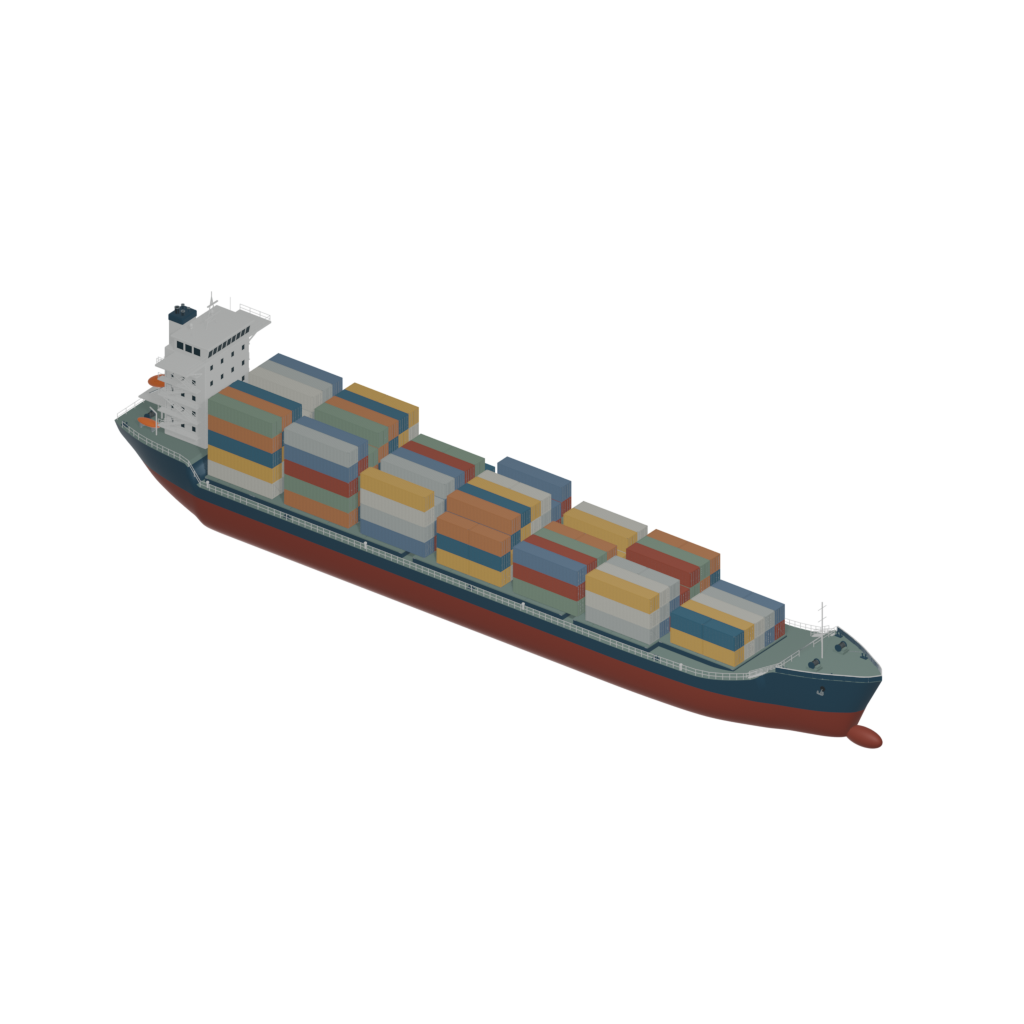
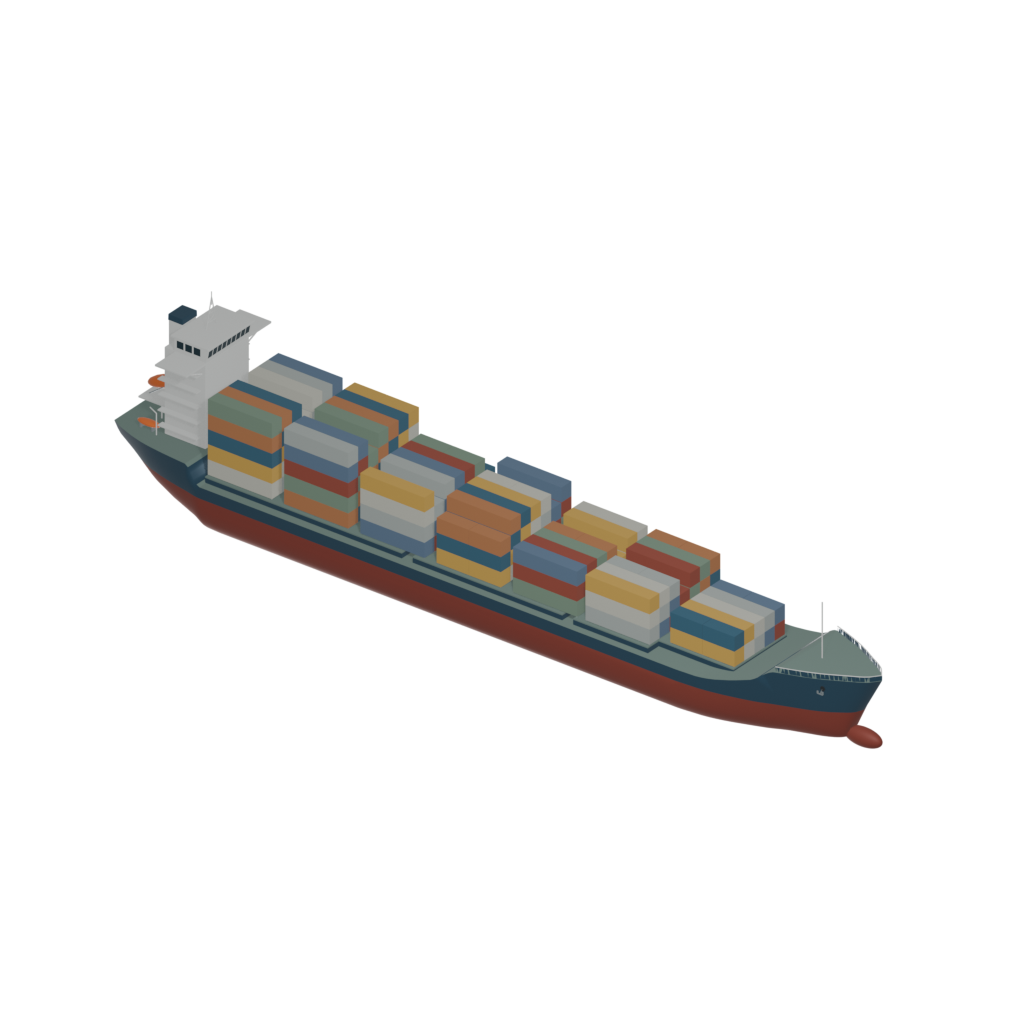
Saved comparison renders from the same camera. These counts describe the two exported variants; they do not measure engineering accuracy or performance on every device.
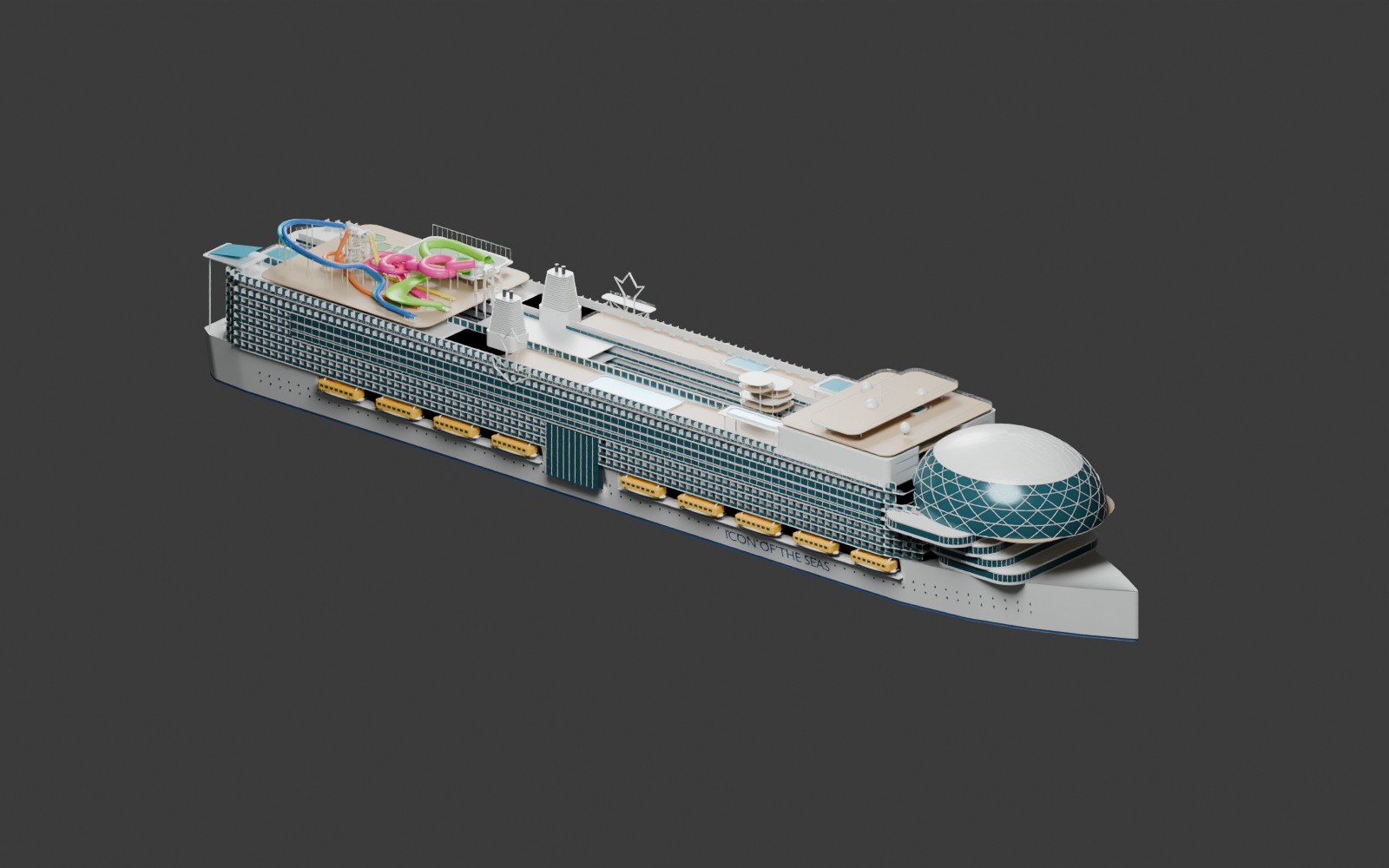
Inspect the cargo model in 3D ↗Layered decks, repeated balconies, glazing, and a distinctive upper-deck skyline. Master v007; provisional review study.
Explore the cruise ship ↗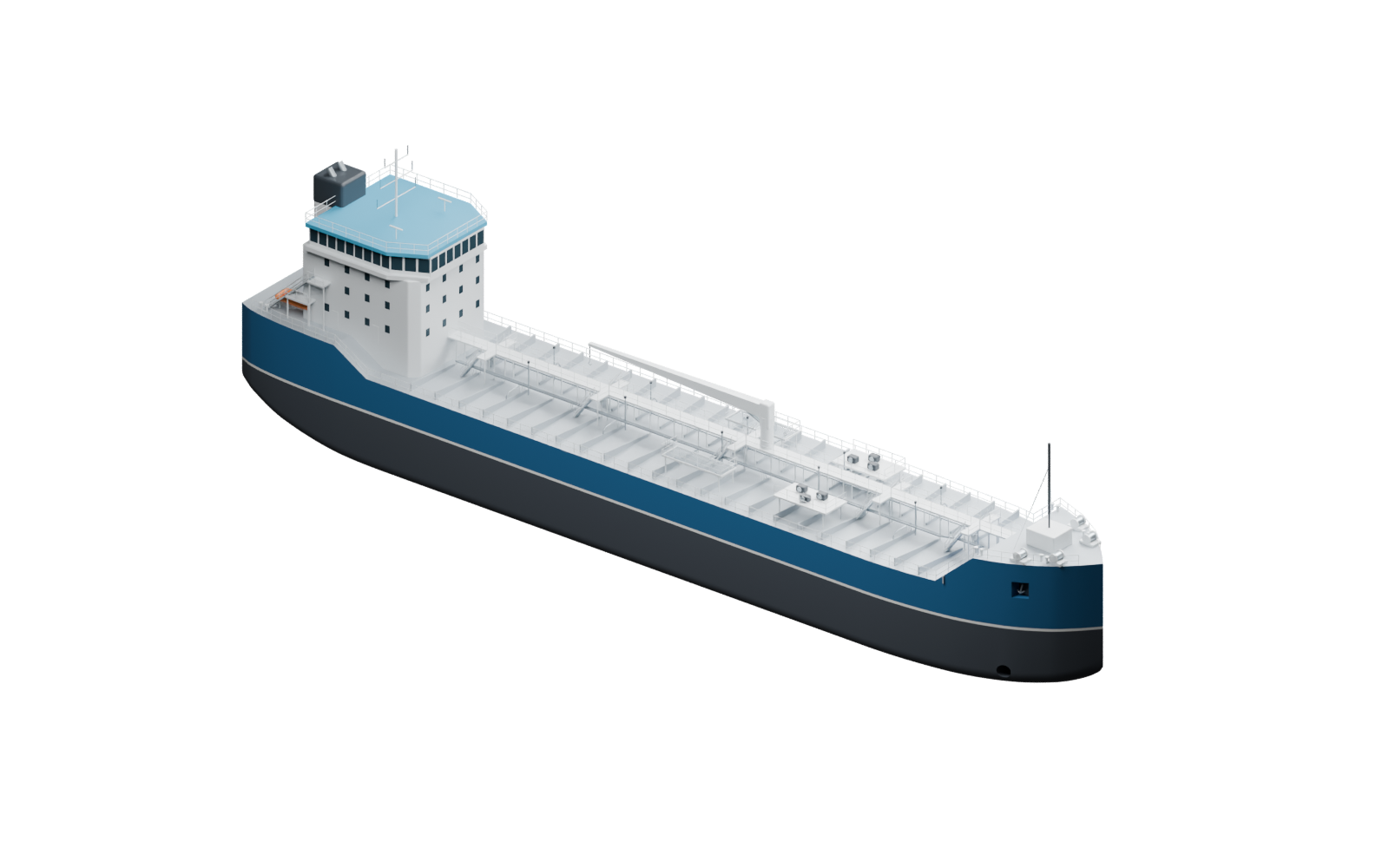
Deck piping, access routes, safety equipment, and connected assemblies. Master v006; dimensions of smaller fittings include estimates.
Explore the tanker ↗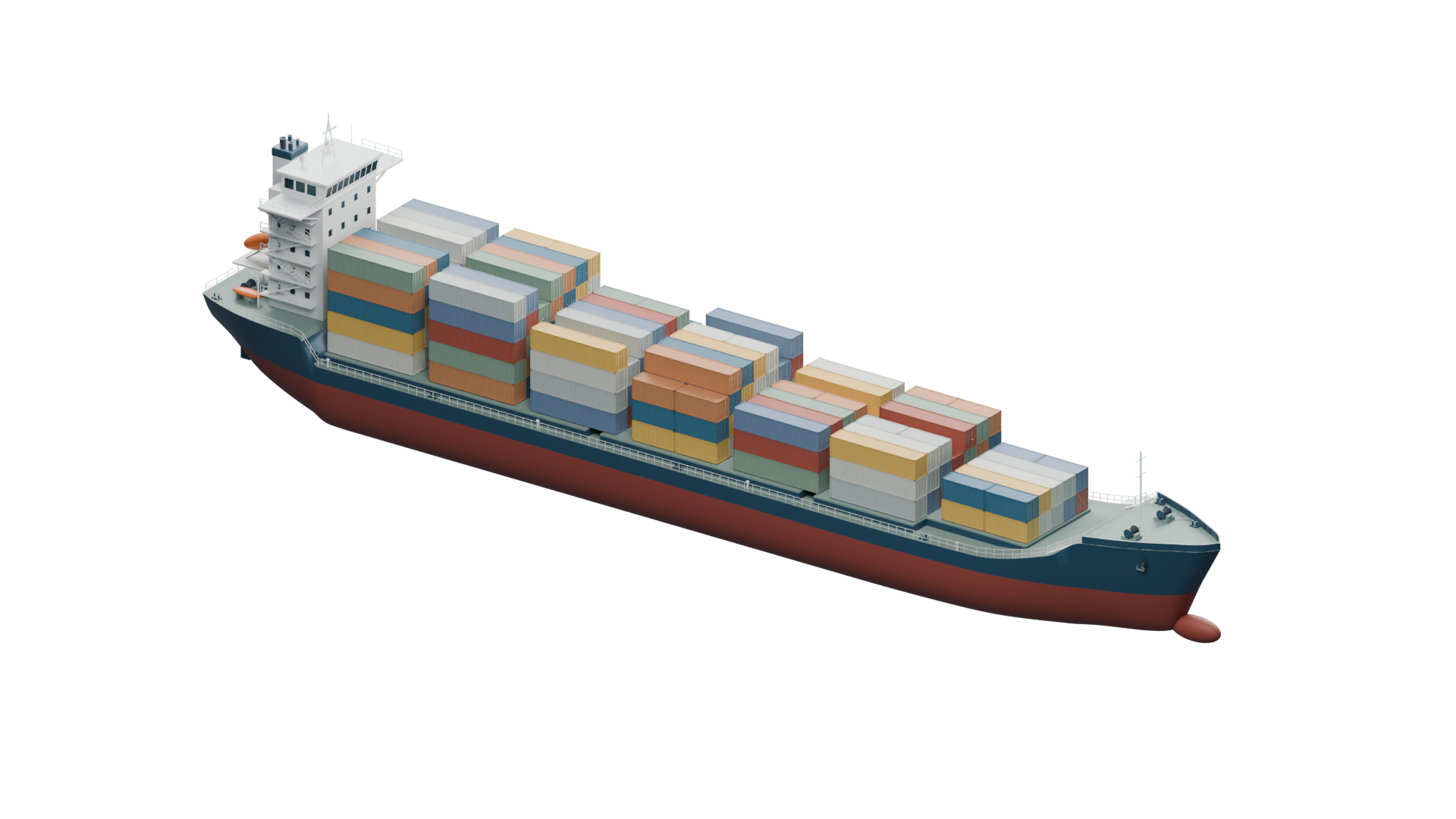
A generic ship study with 210 container envelopes and progressively simpler runtime variants. Master v002.
Explore the cargo ship ↗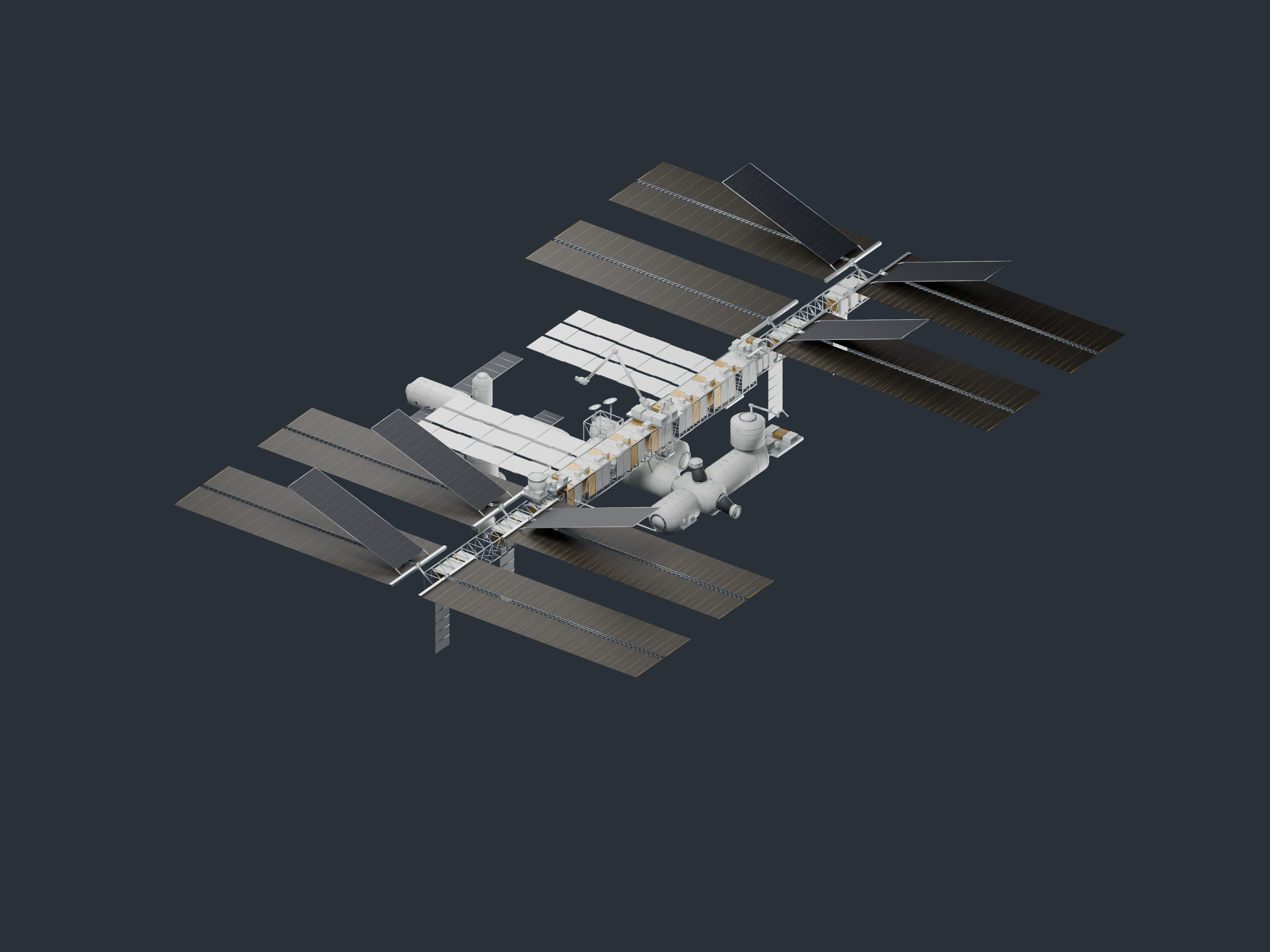
Connected modules and structural assemblies with delicate solar and radiator planes. Master v002; illustrative static pose.
Explore the space station ↗These are visual reconstructions and development assets for LabyrinthOS. Published dimensions and image references guide the work; inferred details remain documented. Approval and runtime status are recorded per asset and revision.
The product behind the asset work